It's been an interesting and exciting few days in iPhone land.
In the just past couple days, Google Earth and a voice recording application from Griffin have both been released for the iPhone. Add to that the news that iPhone owners now have access to AT&T WiFi hotspots for free - nice! Google Earth is - of course - free, and Griffin iTalk is free for a limited time, along with it's Mac client (for syncing).
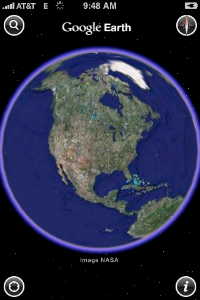 Google earth on the iPhone (iTunes app store link) is pretty cool. It takes advantage of the GPS and accelerometer, and other than that it's, well... Google Earth, just on a smaller screen. You can use touch/twist to rotate gestures on the screen, as you'd expect. I should mention that it's crashed a lot on me, and that when I first installed it I had to hard-reset my phone to get anything to work. But for the most part its been as stable as any other complex app on the device (meaning mediocre to so-so). It's worth the install for sure, if for no other reason then just because of most of the cool things you can do with Google Earth on your Mac or PC.
The other great app that everyone with an iPhone or second-gen iPod Touch should run and get right now (while it's free) is Griffin's iTalk and the complementary iTalk Sync client, which allows you to sync your audio recordings made with the iPhone app to your Mac (PC version coming soon) over the air via WiFi. It works like a charm, is well-documented, looks great and the audio quality is user configurable. The best quality setting sounds pretty great. It could realistically be used for man-on-the-street style interviews.
Provide a file name, select the recording quality, and start recording by clicking the Big Red Button:
 The green button means you're actively recording. The VU meter shows your audio levels live. Click the green button to stop recording.
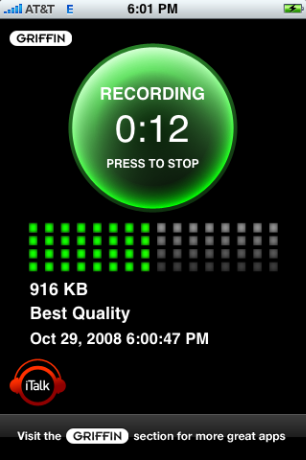 You'll end up with a file (or more than one if you record multiple times) showing in the recording list.
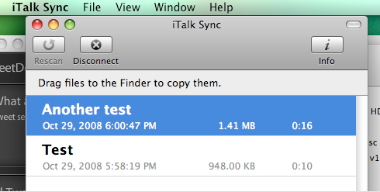
 When you load up the Mac sync client app (a small and quick install) and start the iPhone app on the same wireless network, you'll be prompted to allows the sync client to access your iPhone's recordings.
 While copying the file via the sync program, the iPhone shows you the status and progress:
 And finally you have the files on your Mac (or soon on a PC), in .AIFF format, ready to use. Nice and easy!
 I plan to play with the app in Barcelona next week and test the audio quality to see if it's really good enough for on-the-spot interviews for the podcast. It's worth a shot, although it won't touch the quality of my Zoom H4 recorder, of course.

Member discussion: