Note: This article contains a cheesy workaround that worked for me. It is most certainly unofficial and not supported by HP or anyone else (including me). So, if you use it - just know your mileage may vary.
I have a HP Pavillion dv9620 laptop with Vista 64-bit Ultimate preinstalled. It's a big-ol' laptop and has a webcam built into the top of the display. But the camera has hardly ever worked. For months I am grumbled at it each time it has failed to work in MSN Messenger and in HP's own QuickPlay software. It worked for a while, then it worked only when I first started the computer, and eventually it would not even do that, so I pretty much gave up. HP drivers did not help, one bit. Heck, just finding them on the HP web site is a painful task.
Tonight Carl Franklin asked me to help his test his webcam. We fired up Live Messenger and I was able to see and hear him just fine, but of course mine was not working. Pretty lame.
Call that inspiration. Nothing worse for a technical person than to have a broken system, especially in front of other techies, heh. I decided to start searching the web again this evening for some sort of solution, and after finding a bunch of the same-old forum and newsgroup posts, I ran across what appears to be a real gem. And it seems to have solved my problem: No more failure to see and use the HP webcam, at least so far in Messenger and in QuickPlay.
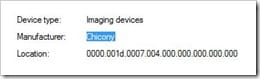
The camera is made by a company called Chicony, and it turns out Acer also uses their cameras (as do some other manufacturers). Note that not all HP notebooks have Chicony webcams - some have Ricoh models and possibly other brands. Check your Device Manager to see who the hardware manufacturer is listed as to help determine whether or not this is the right method for you (or just try it and deal with any glitches if it's not). But, according to this post in the forums at notebookreview.com, people are having great success using the Acer drivers on their Vista Pavillion machines with the built-in webcam.
I downloaded the drivers, checked them for safety, and updated my system by following the simple instructions. Voila! It works! It shows up in device manager as an Acer webcam, but I can live with that, for sure.
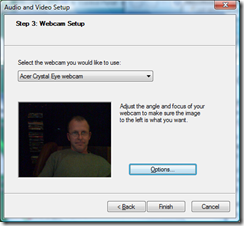
With a little luck it will keep working. Before posting this I rebooted and rechecked the camera, opened a few programs to try to screw it up, etc. So far, so good.
Here are the brief instructions (as slightly adapted from the post by Dylan Bennett at notebookreview.com):
First, download the drivers. I got mine from here, and yes -- these are the drivers I used on my 64-bit Vista install: Acer Extensa 5210 Chicony Webcam Driver 5.7 Next, unzip the installer executable file, then run the setup program and do the reboot thing. After you log back in Windows should tell you it's setting up your devices and finding the drivers. Let it finish. Open the Control Panel and then open the Device Manager. Find the webcam under "Imaging Devices." On mine it was listed as a generic USB 2.0 device. Yours may be different. Right-click on the webcam entry in Device manager and select "Update Driver Software..." from the menu. Choose "Browse my computer for driver software." Choose "Let me pick from a list of device drivers on my computer." Uncheck the "Show compatible hardware" checkbox. Scroll in the list to find Chicony in the dialog's manufacturer list. Choose the "Acer Crystal Eye webcam." You're most likely going to be warned that the driver cannot be confirmed to be compatible. You can tell it to install anyway. Wait for the driver to be installed. - Check Device Manager under the Imaging devices section again and see what you have. Note that the webcam will likely now be listed as an Acer Crystal Eye webcam.
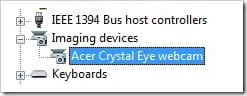
Now, go and use Messenger or whatever program has given you fits before and see what your results are. Be sure to reboot and try all your webcam-enabled programs. Give it a real brutal test before declaring success. For me it's been great, but your mileage most certainly may vary, and I am certain HP will not consider this a supportable configuration, heh.
Proof it works for those that need it, here you go. Gotta love the reflection-in-the-glasses thing, heh:
Good luck!

Member discussion: