When I record my audio for the RunAs Radio show, I'm typically sitting in my home office at my desk and using Audacity along with my Samson 01U USB microphone plugged into my Vista laptop. Audacity is an open-source program for all sorts of fancy audio recording, processing and editing. It's really pretty amazing.
Until fairly recently, Audacity was also pretty reliable. But about a month ago I started experiencing occasional crashes when trying to save and export the audio from my recording sessions. Now, if you think about for more than a couple seconds you'll quickly understand that crashes that occur after the interview is over, but before the file is saved, are extremely frustrating - and not just for me. A recording session do-over with three or more people involved in a 30- to 45-minute interview is really not a nice thing to have to ask for.
This morning Richard and I completed an interview with a guest. When I went to save the file, Audacity crashed. My heart sank, and my brain went into oh-crap-overdrive mode. I really did not want to be in the position of having to ask a busy guest to schedule more time to record an interview that had been quite good in the original session. I needed some magic.
I started thinking about temp files. The hard drive is always flashing away as I record the interviews, so something must be saved somewhere, right?
Sure enough, a quick search for *.au files on the hard drive uncovered nearly 400 files in a "_data" folder off the Audacity project's location. The date and time stamps on them made me feel a lot better - Phew! Each file appeared to contain 10 seconds of audio. The first one was stamped with the exact time we started recording the interview, and the last one with the time we stopped.
I imported all the .au files into Audacity, thinking I could just do that and I'd be good to go. But it turns out Audacity doesn't import files one-after-the-other on the timeline. Instead, it imports them as if they were almost 400 individual tracks in a single 10-second audio project. I started the click-cut-end-paste process, and quickly realized it was going to take literally hours to fix this problem manually.
(Also, just for fun I decided to see if the program would actually play a 10-second project session with 400 tracks in it. No dice.)
I quickly gave up on the cut-paste option in search of something better. What I found was the aptly-named Audacity Recovery Utility. Apparently I'm not the only one who's needed to recover recorded audio seemingly lost during application crashes. It's a Python app and can be used on Windows, Mac and Linux.
The program is simple in its execution. You point it at a folder and it looks for audio files, tries to determine if they are all one block/set, or if they're more than one, and then attempts to put them together into a single .WAV file that you can then import back into Audacity (or anywhere else for that matter) for editing and processing.
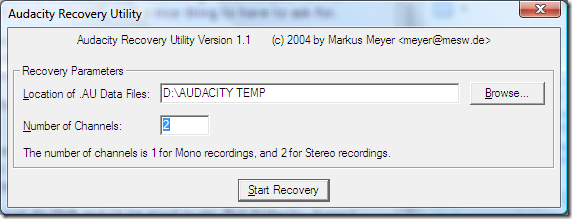
The app will confirm what it finds and give you a chance to stop it from proceeding.
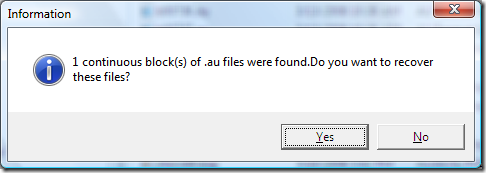
Tell it "Yes" and the program starts processing the temp files.
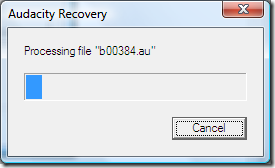
Out the other end, you'll eventually get a .WAV file that you can use.
Sure saved my backside today. Thanks to the author! By the way, supposedly Audacity 1.3.2 and newer (which is a beta release right now, not the stable version) have crash recovery built in. I'll probably have to check that out, as well.

Member discussion: