In an earlier post, I manually attached a linked OneNote audio recording to the OneNote HTML email, which was then sent to my mail server in order to auto-generate a blog entry. I had to manually attach the audio file, because (I assumed) OneNote would not do it. (I've been playing more and more with OneNote's sharing capabilities both on the SharePoint platform and by leveraging the emails it can create, for Blogging or otherwise...)
I was wrong in my assumption: While it's true that the out-of-the-box settings don't attach a linked audio file, you can turn that ability on in one of two places - either in OneNote's Options/E-mail section, or you can use Windows Group Policy to set it for an entire organization (along with literally hundreds of other common settings).
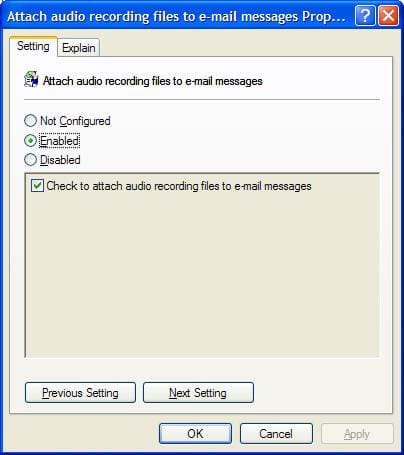
To do this via group policy, you just enable the policy, and then activate the setting. Once you do this, the policy is propagated to all clients on the domain to which that policy applies:
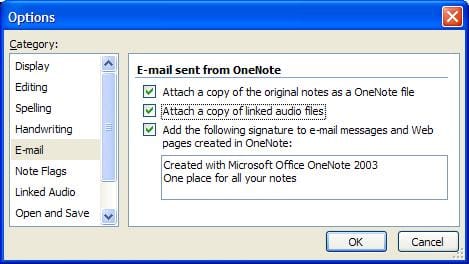
If you don't have group policy (or if you have it but just don't use it - in which case see below), you can go to the OneNote Options dialog, choose the E-mail section and just check the appropriate box.
SideNote (pun intended): Practically ALL of OneNote's options can be controlled though group policy, along with a huge number of settings for the rest of the Office 2003 System family of applications - not to mention Windows domain policies. If you are running Group Policy and Office 2003, you need to take advantage of this - it makes things consistent and fast, two things IT groups love and need. Remember - group policies are not just for operating system settings - they are also available for a number of other applications.

Member discussion: