Yesterday I wrote about how I enabled my MacBook Air to share a wireless laser printer in my home office so I could print to it using the new Air Print feature in iOS 4.2 on the iPad. That works great, but since my MacBook is only almost always on, I started thinking about other options. I have a first –generation (Power-PC-based) Mac Mini in my living room that basically doesn’t get used at all, but I don’t think OS x 10.6.5 is really an option for that. So, I turned my attention to the other always-on computer in my home office, the HP MediaSmart Home Server.
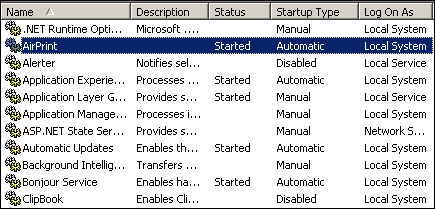 I wondered to myself, has anyone come up with a way to share printers accessible from a Windows computer with AirPrint-capable iOS devices? And, sure enough, someone has already done just that. The short tutorial covers Windows workstation versions (XP, Vista and Win7), but the instructions apply to Windows Home Server and other flavors of Windows Server, as well. My Win Home Server is based on the Server 2003 OS.
I’m going to add to a couple of the original steps here, since there are a few things I did that were not included in the instructions on the original post.
First of all, you need printer drivers installed for the printer you want to share on the system. You may not have printers already installed and shared on your Windows Home Server. To do this, you can make a Remote Desktop connection to your WHS machine, and from there follow the standard steps to set up a local printer. In my case, I downloaded the Brother printer drivers and set up the network printer and printed a test page from the WHS machine to make sure it was working properly. Next, I followed the instructions on the port referenced earlier, and then I enabled sharing on the networked printer.
The first time I connected to the printer, a little padlock icon appeared on the iPad (see beow), indicating a Windows account user name and password were required to access the shared printer. This, of course, can be controlled and changed on the Windows computer in the printer sharing security preferences:
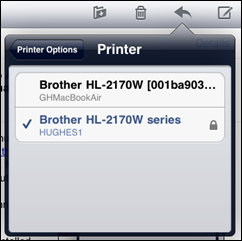
After entering the account information, the printer was accessible and printing of various content (text, graphics and photos) worked flawlessly. One big difference I noticed between sharing the same printer through Windows vs. the Mac is that when connected via the Windows AirPrint share, an option for double-sided printing appeared. That option is missing when connecting to the same printer shared via the Mac. Here’s the Windows-connected printer options as seen on the iPad:
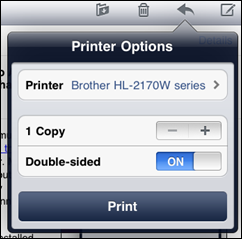
So, I now have my laser printer shared across all devices on my LAN, including iOS 4.2, via the Windows Home Server, no extra charge!
Related Links:
Technorati Tags: Air,Print,Airprint,iPad,Windows,Home,Server,Apple,iOS,AirPrint,4.2

Member discussion: